
The Returns dashboard can be found under the Analytics tab. It displays a full refund analysis detailing all costs associated with returns. The data will lead you to uncover impactful insights about vendors (quality issues), shipping problems, or other hiccups within the sales process.
- Main data points and metrics
- Top 200 returns table
- Why is there a discrepancy in returns data between Feedvisor and Amazon Seller Central?
- How to save a view
- How to select a view
- How to schedule automatic emailing
Main data points and metrics
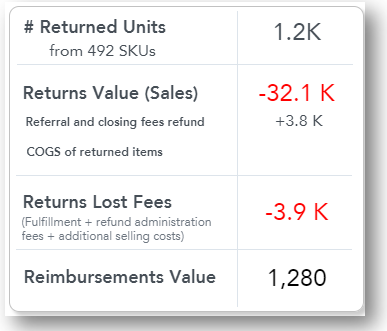
- # of Returned Units - The number of product units that have been returned by the consumer (based on the original date they were ordered)
- Returns Value is the monetary value of a returned product based on the sale price. for example, if there were 20 items returned and they were sold at $100 per unit, the returns value would be $2,000.
- Referral and closing fees refund - Amazon refund (80% or 5$ - the lowest)
- COGS of returned items - Cost Of Goods Sold - returned items*Cost (This is assuming that the returned item is sellable).
- Returns lost fees is the loss as a result of the return. This section takes into consideration fulfillment, shipping costs to the consumer, and additional selling costs (added by you via the Inventory & Listings configuration file). This is assuming that the returned item is sellable and the referral fees are returned to the seller.
- Reimbursements value is the monetary value reimbursed to you as a result of returned items that were lost or damaged during the return process.
- Sales return rate is The value of the returned sales divided by the total sales.
Kindly note that returns will appear on the graph on the original date they were ordered. This is why you might see a low return rate for the recent days, and the return rate might look higher as you go back. If you wish to see an accurate return rate, you should look at a time period that ends 30 days before today’s date. For example, if today is April 1st, I should look at the return rate for dates that end on February 28th (30 days before today’s date).
You can filter by Vendor to see which of your vendor’s stock is pulling your sales return rate up and then negotiate with your vendor about sharing the expenses for the returns or ask for a discount due to the cost of the returns.

Top 200 returns table
In this table, you can sort the data by Gross Margin in descending order to spot items with negative Margin after the deduction of the costs of the returns and make smart decisions about the need to replenish or eliminate those items.
Also, when you calculate a floor price you can take into account the return costs and define a higher markup in advance to compensate the cost of the returns.

Why is there a discrepancy in returns data between Feedvisor and Amazon Seller Central?
The returns data is based on the original date they were ordered, wherein Seller central the data is based on the returned date.
You can save frequently-used dashboard filter settings as a named dashboard view.
This is especially convenient if you need to switch frequently between multiple filter settings. For example, you can select a particular brand or vendor and save that information as a separate dashboard for your buyers to manage:
- Set the dashboard filters to the values that you want to save as a view.
- Click Unsaved View and Save current view
- In the dialog box, select the filter(s) that you want to include in the view.
- Enter a name for the view and then click Save.
Select a View
Click on the drop-down menu in the upper right of the dashboard and choose the view.
Click on the down arrow to rename or delete the view.
Schedule Automatic Emailing of Dashboards
You can schedule automatic emailing of the dashboards to yourself, as well as to others.
Dashboards are delivered as a PDF attachment. Any filters applied at the time of scheduling are also applied to generated emails.
- Navigate to the dashboard that you want to email. Optionally, add filters.
- Click the Clock icon in the top right corner.
- Choose the dashboard, choose the mailing schedule, define a custom email subject and message, or add additional recipients.
- Click Schedule
Comments
0 comments
Please sign in to leave a comment.