
The Performance dashboard can be found under the Analytics tab, it provides in-depth reports that are connected to your KPI- key performance indicators.
You can narrow the scope of the reports by selecting values in the filter on the upper bar.
-
The Performance dashboard sub-tabs are
Sales
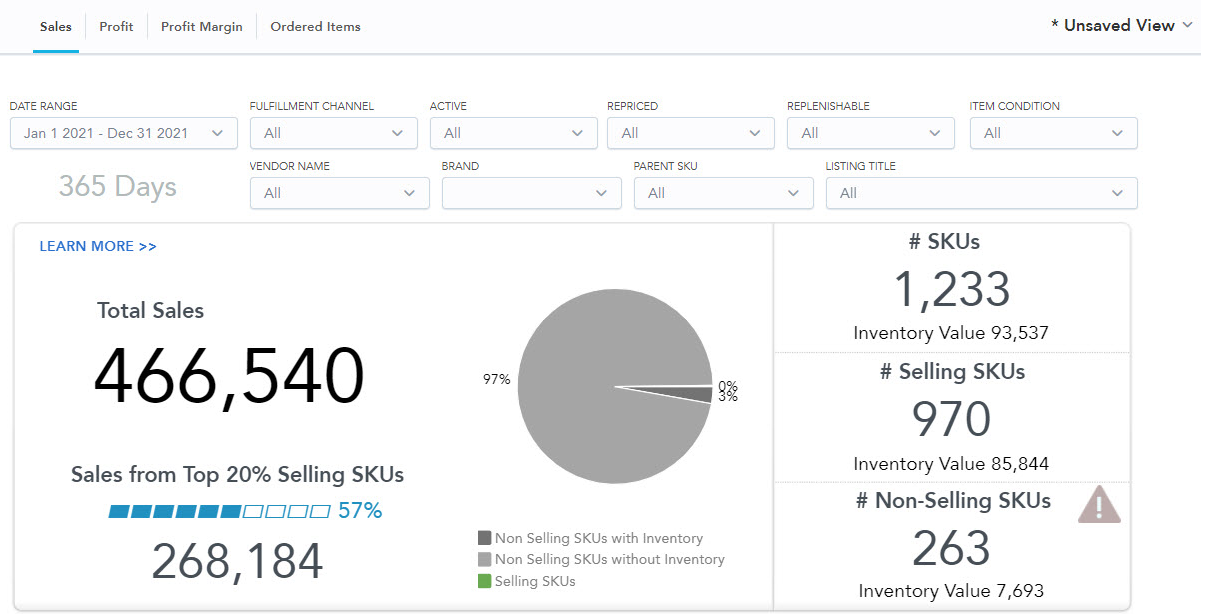
An overview of which SKUs are fueling your total sales.
You can easily see how diversified your inventory is and can easily identify items that are not selling at all.
You can also see an illustration of the sales that are generated by your top 20% of Selling SKUs.
the higher the percentage of the top 20% selling SKUs is, the higher dependency, you as a seller have on those items.
A healthy diversification of risk would be 80% and below of your sales are generated by 20% of your inventory.
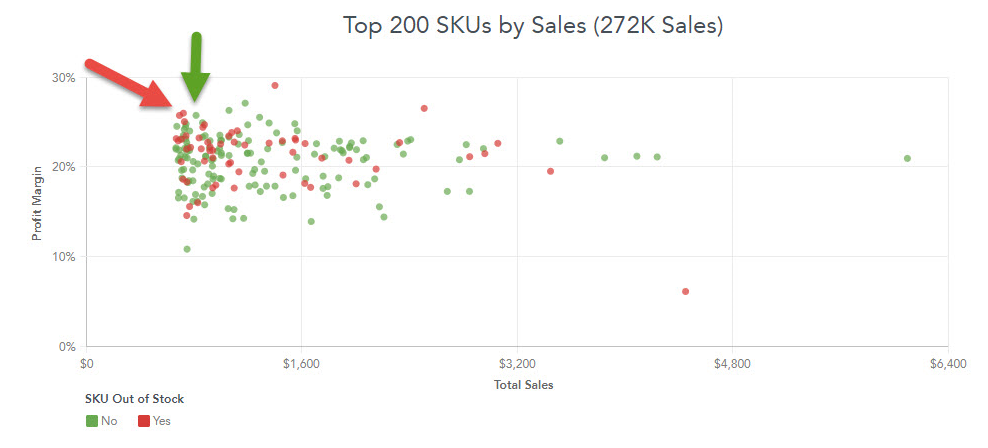
The scatterplot allows you to easily break your portfolio into different groups and apply different repricing and replenishment strategies to each group.
As an example, let’s take the low sales, high-profit-margin group, which will be visible in the top left quadrant of the scatterplot. This group represents an opportunity to drive additional profit to your bottom line if you can drive more traffic to these listings. Review the price positioning, conversion rates, and Buy Box share of the SKUs in this group on at least a bi-weekly basis.
Profit
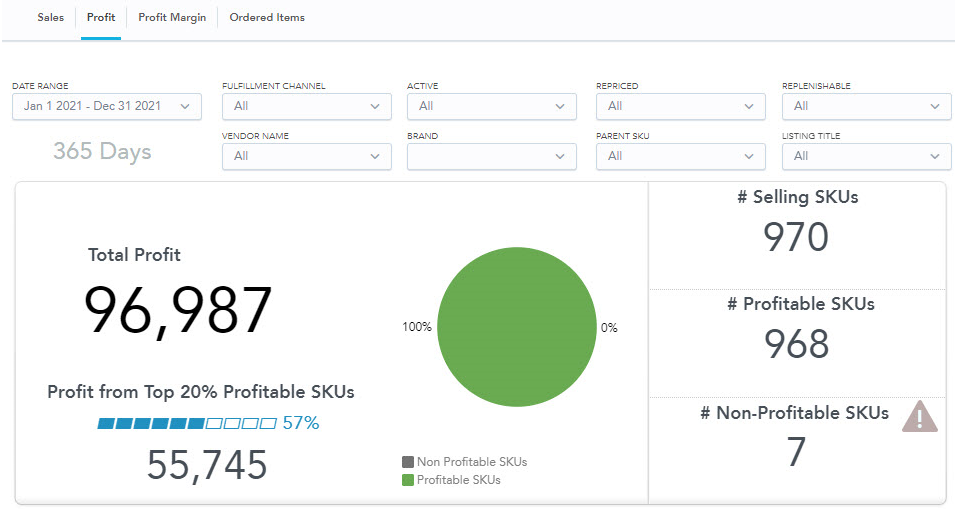
A detailed overview of which SKUs are fueling your total profits.
This is an easy and quick way to visualize and distinguish between your profitable and non-profitable SKUs.
You can spot your non-profitable items by clicking on the Non-profitable figure and make decisions such as identifying items where you have excess inventory.
Profit margin
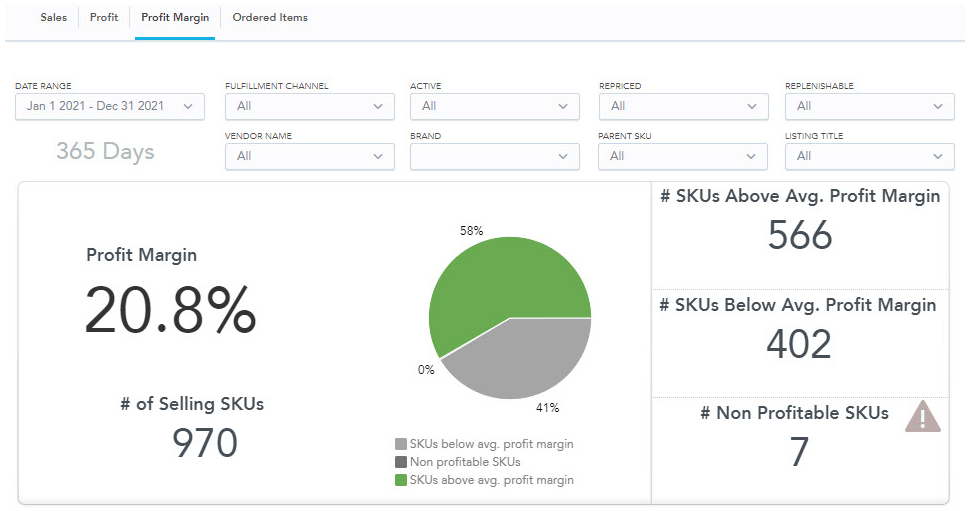
An overview of the average profit margin and which SKUs are performing above or below the average margin. you can quickly identify items that are moving towards undesirable profit margins, clicking on the numbers of SKUs below avg. profit margin will redirect you to the Profitable Items table, then you can sort by profit margin from smallest to largest and make decisions, for example, is this an item that I want to maintain?
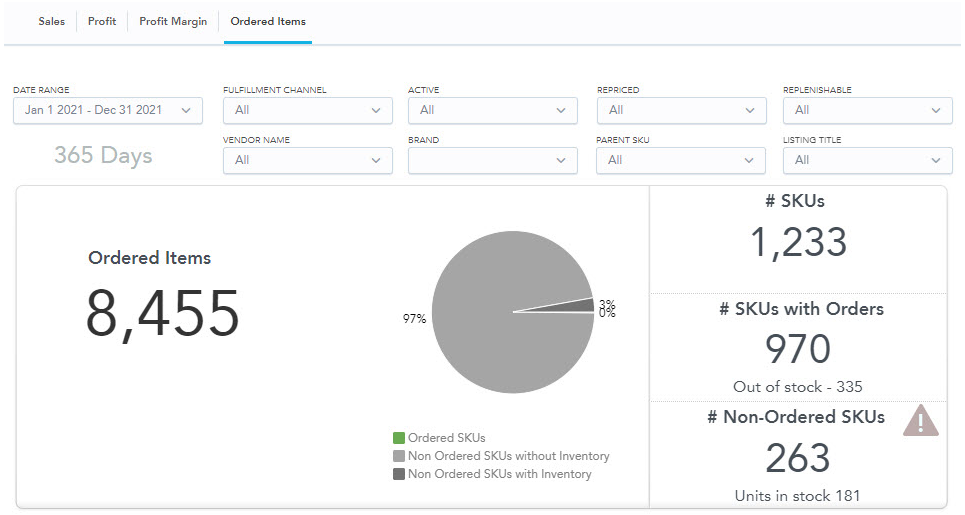
Ordered items
The number of ordered items, sold items that are currently out-of-stock, and SKUs with the most orders.
You can review all sold items by clicking on the number of SKUs with orders and then sort by fulfillable quantity to find potential missed sales opportunities.
by clicking on the Non-ordered SKUs figure, you can sort by fulfillable quantity to identify items where you have excess inventory.
Save a View
You can save frequently-used dashboard filter settings as a named dashboard view.
This is especially convenient if you need to switch frequently between multiple filter settings. For example, you can select a particular brand or vendor and save that information as a separate dashboard for your buyers to manage:
- Set the dashboard filters to the values that you want to save as a view.
- Click Unsaved View and Save current view
- In the dialog box, select the filter(s) that you want to include in the view.
- Enter a name for the view and then click Save.
Select a View
Click on the drop-down menu in the upper right of the dashboard and choose the view.
Click on the down arrow to rename or delete the view.
Schedule Automatic Emailing of Dashboards
You can schedule automatic emailing of the dashboards to yourself, as well as to others.
Dashboards are delivered as a PDF attachment. Any filters applied at the time of scheduling are also applied to generated emails.
- Navigate to the dashboard that you want to email. Optionally, add filters.
- Click the Clock icon in the top right corner.
- Choose the dashboard, choose the mailing schedule, define a custom email subject and message, or add additional recipients.
- Click Schedule
Comments
0 comments
Please sign in to leave a comment.