
What is the Tags & Attributes tab?
*For Enterprise package.
You can define your own tags and custom attributes and associate listings to them based on your unique business criteria and targets.
Once set, you can filter and group your data on a custom Dashboard, giving you the ability to analyze your business consistently across every data source in real-time. Choose from four types of tags & attributes: Tag, Date, Numeric, or Text.
Here are some use cases to implement when creating a report or an insight:
-
Tag - A boolean query (yes/no), which you can use for marking seasonal items or your private label items for example.
-
Date - Sort your data by specific dates. For example, you can mark expiration dates of products and then monitor and make sure that these items are sold before the expiration date or mark entry date for new products, liquidation dates.
-
Numeric - Define your own categorization for grouping products by number. For example, define a number of top-selling products and a number of low-profit-margin products or define target velocity for your SKUs.
-
Text - Define your own categorization for products by text. For example, colors, holidays, Key sales dates, or product designations such as items for women, men, or children.
How to add a Tag or an Attribute?
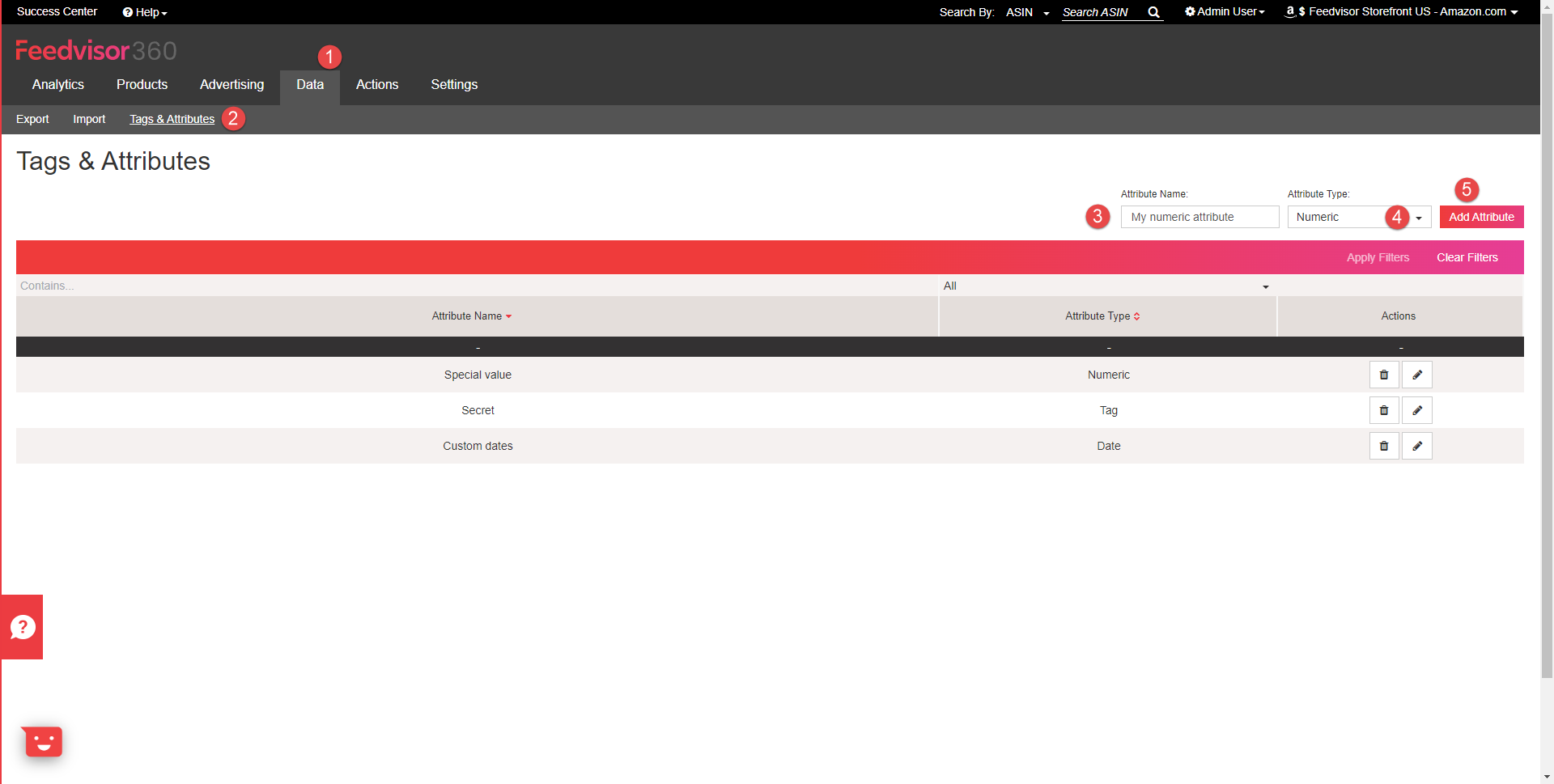
1. Click on the Data tab, then on the Tags & Attributes sub-tab.
2. Name the attribute, select the attribute type from the drop-down, and click Add Attribute.
*You can add up to 5 Date attributes, 15 Numeric attributes, 10 tags, and 10 Text attributes.

How to add a value?
1. Click on the Export sub-tab, select the Tags & Attributes file from the drop-down, and click on Export request: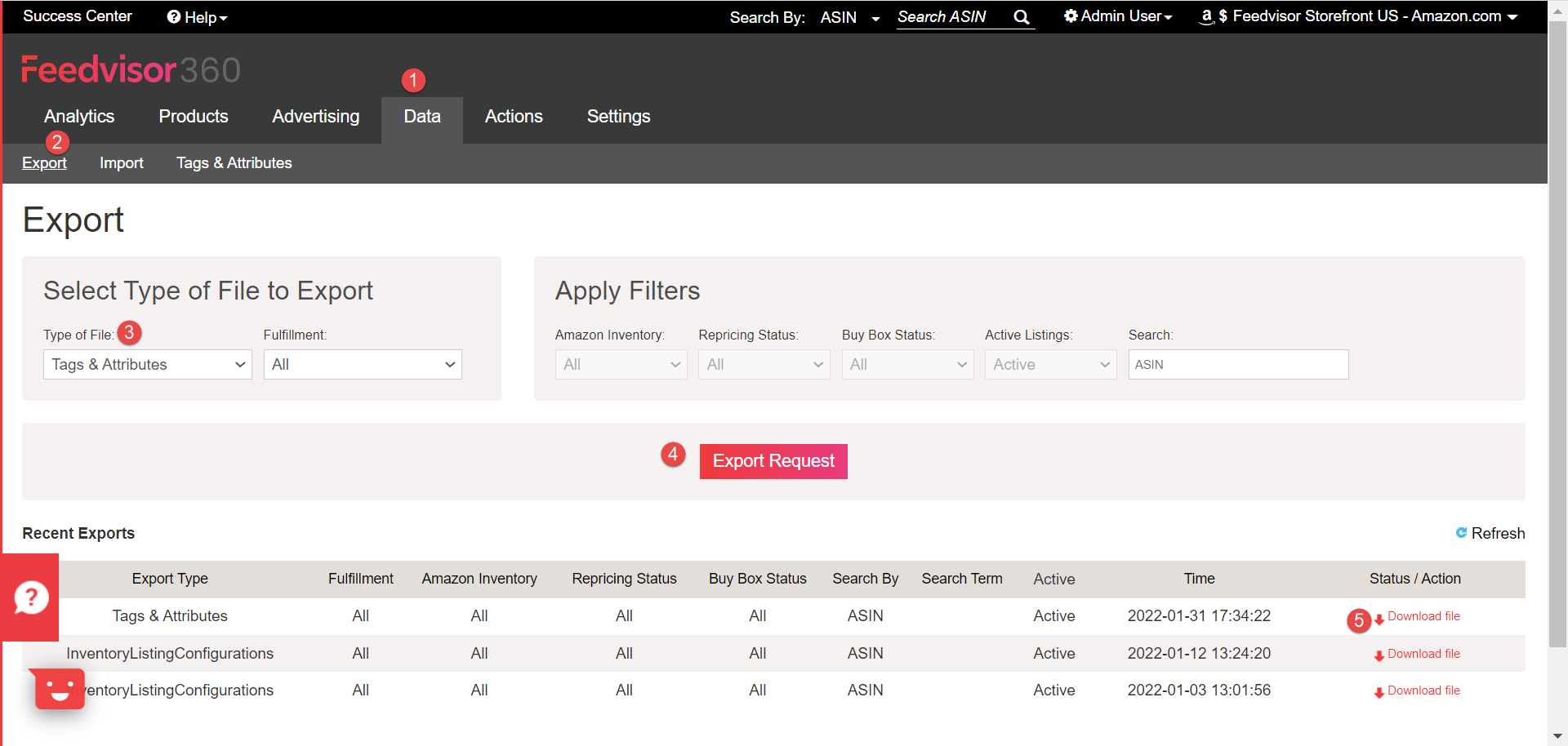
 2. Open the file and add variables to the desired listing: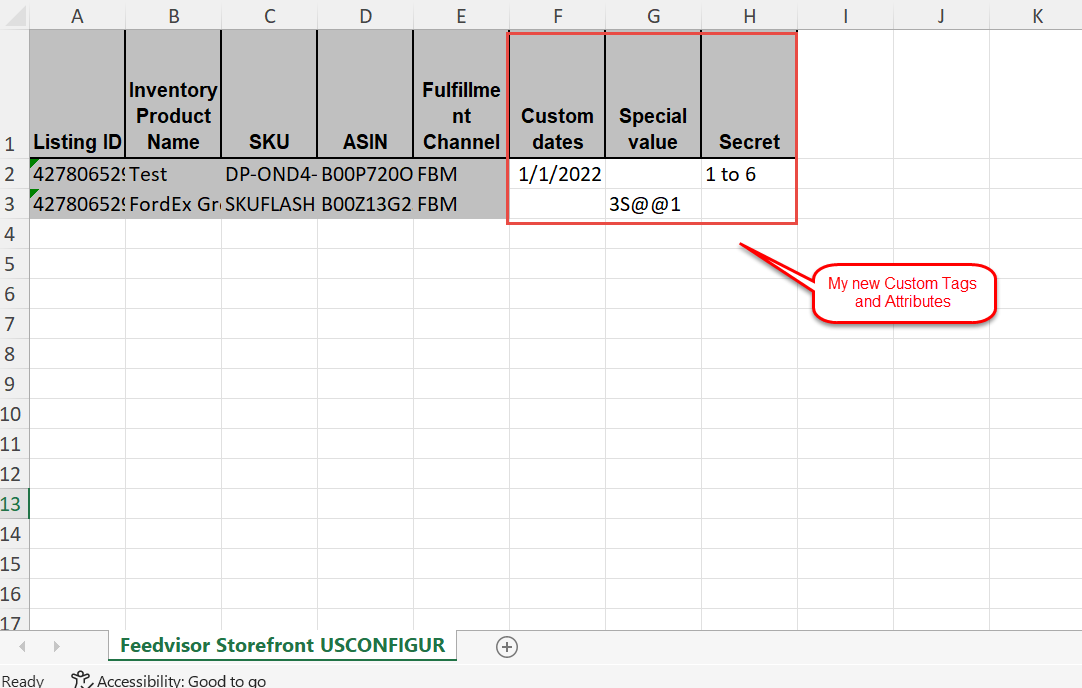
3. Click on the Import sub-tab, select the Tags & Attributes file from the drop-down, locate your file, and click Upload.
* You can also manage your custom attributes via the Slider or via API (CUSTOM_ATTRIBUTES).
 Your attribute will appear (within approx 3 hours) on the attributes list within the Insight or Reports tabs.
How to update or delete an attribute?
1. Click on the Data tab, then on the Tags & Attributes sub-tab.
2. Click on the trash can or the pencil icons to delete or to update the Attributes.
3. Click OK.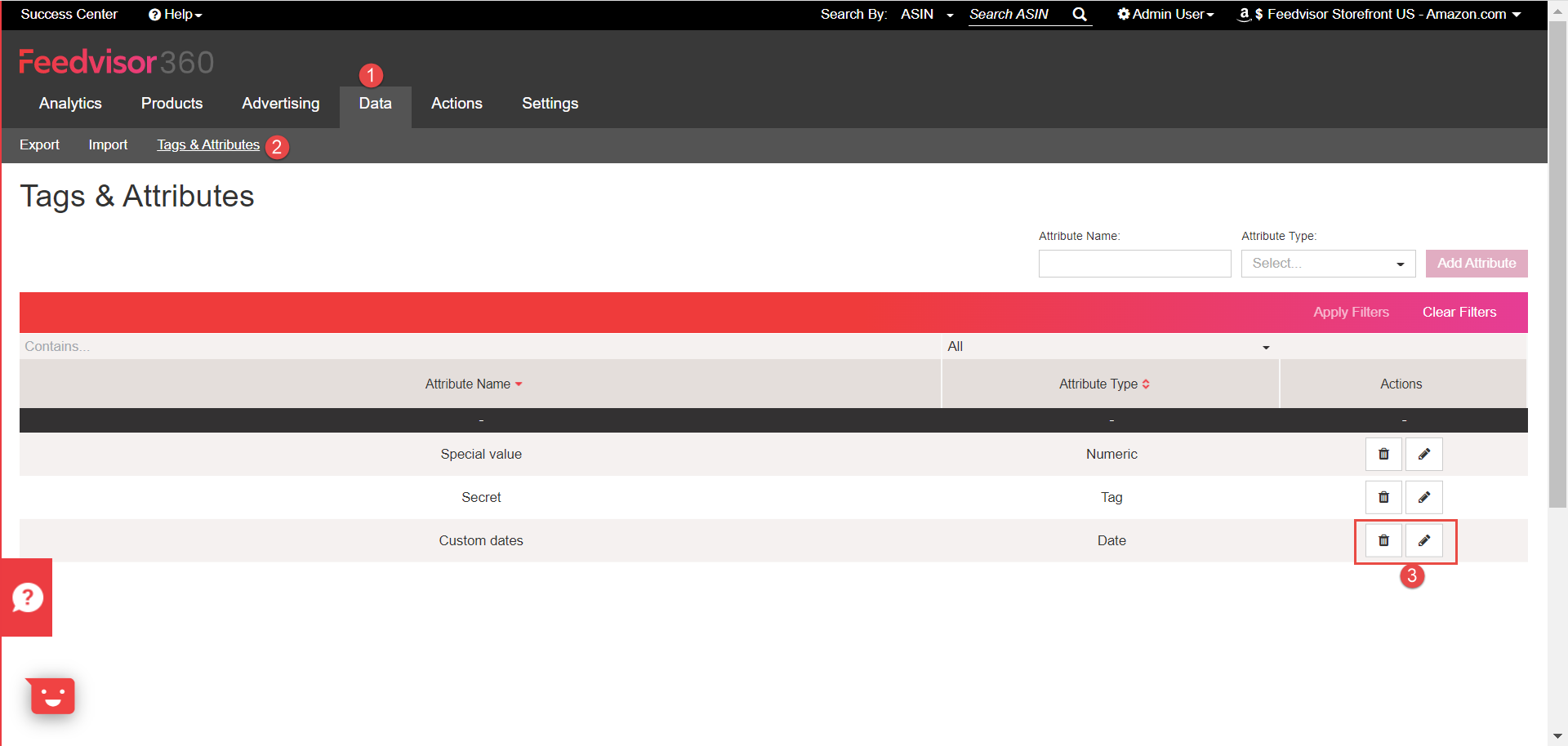

How to update or delete values?
1. Click on Export sub-tab, select the Tags & Attributes file from the drop-down, and click on Export request.
2. Open the file, delete or update the variables on the desired listing. 
3. Click on Import sub-tab, select the Tags & Attributes file from the drop-down, locate your file, and click Upload.

* You can also manage your custom attributes via the Product Slider.
Comments
0 comments
Please sign in to leave a comment.